
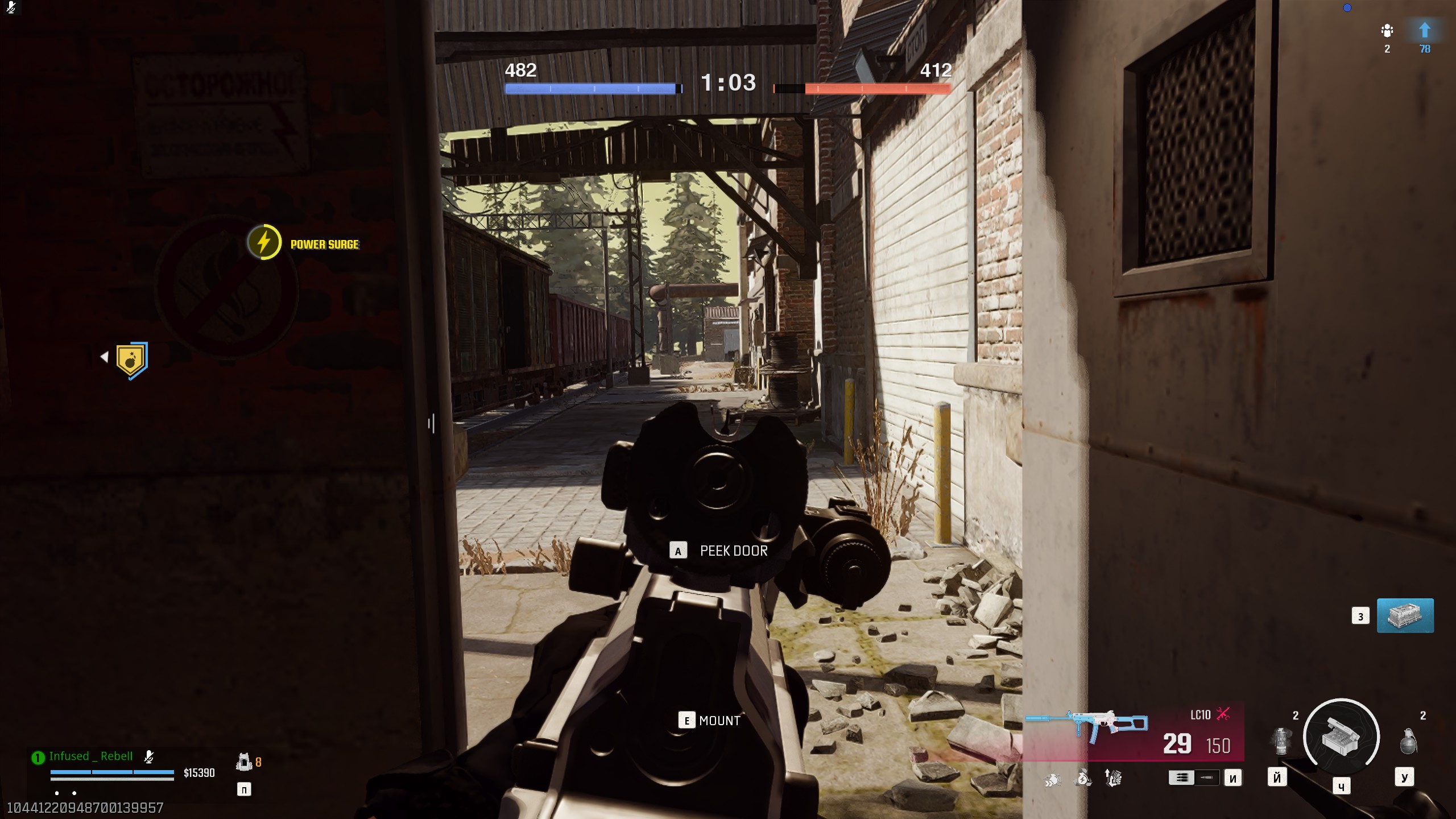
Achieving smooth frame rates in Warzone is crucial for competitive play—higher FPS reduces input lag, improves target tracking, and ensures consistent performance during intense firefights. Whether you’re on PC, console, or play on an entry-level rig, this guide breaks down every graphics setting, hardware tweak, and in-game adjustment to help you maximize FPS without sacrificing too much visual clarity.
Follow each step—from updating drivers to fine-tuning specific Warzone options—to gain a competitive edge through superior performance and fluid gameplay.
1. System and Driver Preparations
Before adjusting in-game settings, ensure your system is optimized at the OS and driver level. Complete these preparatory steps:
- Update GPU Drivers: Download the latest NVIDIA or AMD drivers. New releases often include performance optimizations specifically for Warzone.
- Windows Power Plan: Go to Control Panel → Hardware and Sound → Power Options and select “High Performance” (or “Ultimate Performance” if available) to prevent CPU throttling.
- Disable Background Apps: Close unnecessary applications (Discord overlays, Chrome tabs, third-party overlays) that consume CPU/GPU resources.

- Game Mode and GPU Scheduling: In Windows Settings → Gaming, enable “Game Mode.” Under Graphics Settings, enable “Hardware-accelerated GPU scheduling” if your GPU and OS support it.
- SSD Installation: Install Warzone on an SSD (NVMe if possible) to reduce texture pop-in and improve streaming performance, indirectly aiding FPS stability.
2. In-Game Graphics Settings Overview
Warzone’s graphics menu offers many parameters—each with a direct FPS impact. Below is a table summarizing key settings, recommended values for maximum FPS gain, and their performance impact:
| Setting | Recommended Value | Performance Impact |
|---|---|---|
| Display Resolution | Native Monitor Resolution (e.g., 1920×1080 or 2560×1440) | Lowering resolution yields large FPS gain but blurs image; consider 1080p if on 1440p monitor. |
| Render Resolution | 80–100% | Reducing to 80–85% improves FPS significantly; maintains reasonable clarity on 1080p/1440p. |
| V-Sync | Disabled | Disabling removes input lag and uncaps FPS; may cause screen tearing. |
| Texture Resolution | Normal or Low (depending on VRAM) | High textures consume VRAM; set to Normal if ≥6GB VRAM, else Low. |
| Particle Quality | Low | Reduces smoke and explosion fidelity; significant FPS boost in firefights. |
| Shadow Map Resolution | Low | Shadows are expensive; lowering to Low yields large FPS improvements. |
| Screen Space Reflection (SSR) | Disabled | SSR impacts GPU heavily; disable to gain FPS. |
| Tessellation | Disabled | Reduces geometry detail; modest FPS gain. |
| Anti-Aliasing | None or SMAA 1× | Disabling AA yields major FPS boost; SMAA 1× is minimal impact. |
| Ray Tracing | Disabled | Ray tracing has extremely high GPU cost; disable for max FPS. |
3. Advanced Graphics Tweaks
Beyond core settings, additional options can be tweaked for further gains:
- Anisotropic Filtering: Set to 2× or 4×. Higher values improve texture clarity at angles but have minor performance impact; 2× is a good compromise.
- Ambient Occlusion: Disabled. This setting adds realistic shading but costs FPS; disabling increases frame rate in shaded environments.
- Far Cache (AMD GPUs): Enable to optimize CPU usage when streaming textures; may help on lower-end CPUs paired with AMD GPUs.
- Screen Space Ambient Occlusion (SSAO): Disabled. Similar to AO, it improves visual depth at significant performance cost.
- Motion Blur: Disabled. Removing blur improves clarity and responsiveness, useful for competitive play.
- Depth of Field: Disabled. Disabling gives clearer distant view, reducing GPU load slightly.
4. NVIDIA and AMD Control Panel Optimizations
In addition to in-game settings, configure your GPU control panel for maximum performance:
| Control Panel Setting | NVIDIA Recommended Value | AMD Radeon Recommended Value | Benefit |
|---|---|---|---|
| Power Management Mode | Prefer maximum performance | Power Efficiency (Off) / Maximum Performance mode | Prevents GPU from downclocking under load—ensures stable FPS |
| Anisotropic Filtering (AF) | Application-controlled | Application-controlled | Respect in-game AF to avoid override causing stutter |
| Texture Filtering – Quality | High performance | Performance | Optimizes texture sampling for higher FPS |
| Low Latency Mode (NVIDIA) | Ultra | N/A | Reduces GPU queuing, improving input responsiveness |
| Variable Rate Shading (VRS) | Off (in-game control) | Off (in-game control) | Ensure Warzone’s internal VRS settings manage shading rate |
| Async Compute (AMD) | N/A | Enabled | Allows better GPU task scheduling, improving performance in DX12 titles |
5. Console-Specific Adjustments
On console platforms (PS5, Xbox Series X/S), you have two main display modes:
- Performance Mode: Prioritizes frame rate (up to 120 FPS) by lowering resolution (e.g., 1080p dynamic). Ideal for competitive play.
- Quality Mode: Prioritizes resolution (up to 4K dynamic) at 60 FPS. Better visuals but may introduce input lag.
Additional console tips:
- Disable HDR: In your console’s display settings, turn off HDR to reduce GPU/TV processing lag.
- Enable Game Mode on TV: Most modern TVs offer a “Game Mode” that reduces post-processing, lowering input latency.
- Use Wired Connection: A wired Ethernet connection reduces packet loss and latency spikes, indirectly aiding smooth gameplay.
- External SSD (PS5/Xbox Series X): Install Warzone on an external NVMe SSD for faster asset streaming and reduced stuttering in large maps.
6. Additional Tips and Tricks
To squeeze out every FPS possible, consider these final adjustments:
- Windows Transparency Effects: Disable via Settings → Personalization → Colors → Transparency effects (Off) to free CPU/GPU cycles.
- Disable Full-Screen Optimizations: Right-click Warzone.exe → Properties → Compatibility → Check “Disable Fullscreen Optimizations” to prevent occasional stutter.
- Set Process Priority: In Task Manager, set Call of Duty: Warzone’s process priority to “High” to allocate more CPU resources when running background tasks.

- Limit Background Recording: Disable Windows Game Bar recording features—Settings → Gaming → Xbox Game Bar (Off)—to reduce CPU overhead.
- Overclock (Advanced Users): If your GPU/CPU allows, a mild overclock can deliver additional FPS. Monitor temperatures closely to prevent thermal throttling.
- Periodic Driver Rollbacks: If a new driver causes instability, revert to the previous stable version to maintain consistent performance.
Conclusion
Optimizing Warzone for maximum FPS involves a comprehensive approach—updating drivers, tweaking OS settings, fine-tuning in-game graphics, and adjusting GPU control panel options.
Consoles benefit from choosing Performance Mode, disabling HDR, and leveraging Game Mode on TVs. By following this guide’s table-based recommendations and additional tips, you can achieve smoother frame rates, lower input lag, and a more responsive gaming experience—translating to better reaction times and a competitive edge in every match.
Leave a Reply